Merge documents
Category: Forms
Version: 1.0
Last updated: February 2, 2026
Author: Any2Info
Setup
The setup process of a Word Merge document is split into 2 distinct sections:
Word, the creation of the word file & preparing the document
Reporting Studio, adding the created document as a Word Merge document
Word Setup
For the Word setup part it is highly recommended, and assumed, that you have installed the Any2Info Word Add-in. As this makes creating the Word document considerably easier.
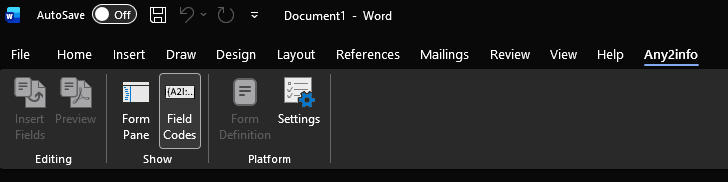
When opening a Word file a new Any2Info tab you first have to log in and chose a collection. You can do so by clicking on the Settings option.

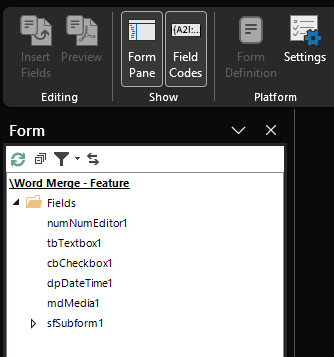
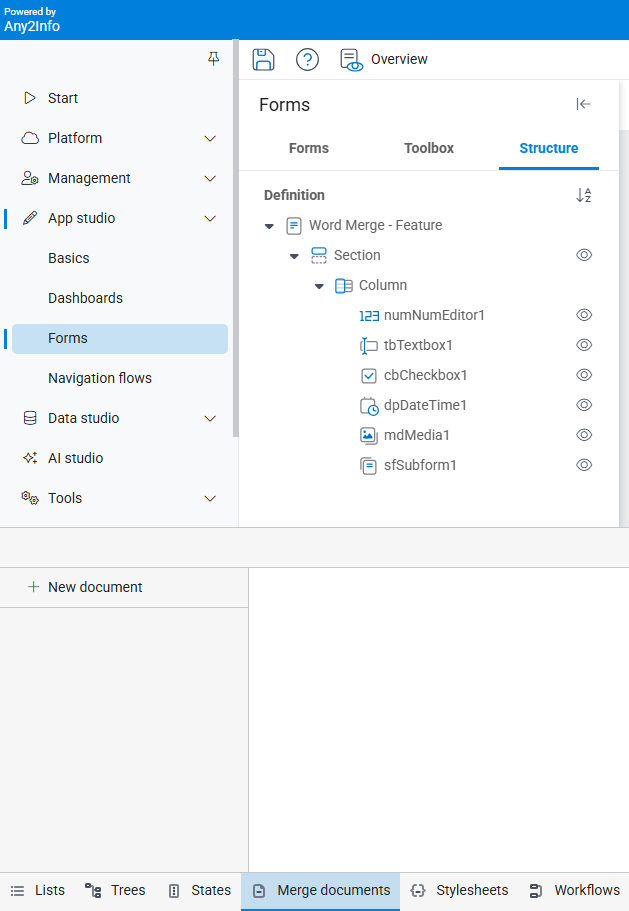
When you have logged in you can pick a Form Definition to pick fields from. This will open a panel on the left side of the Word instance. It is also important that you enable the Field Codes option, this will be important in the next step.

When the page is active and double clicking on a field will insert the Field Code of that field.

When using this Word file it means that fields value will be inserted at that position in the PDF export.
Special Values
A word merge file can support certain special values, mainly used in formatting.
Code
Value
Explenation
{A2I:<fieldName/headerName>}
-
Adds the value of the given field into the body
{A2I:<fieldName/headerName> |Check{"true": , "false": }|}
Boolean (true/false)
Adds the given field to into the body. If the value is “true”, the “true” text is added. If “false” then the “false” text is added
{A2I:<fieldName/headerName>|Date{"format":<ISO_8601 format in quotes> }|}
Datepicker/Date/Datetime
Adds the given field to into the body. The exported value is formatted in the given format
{A2I:<fieldName/headerName> |Image{"maxheight": , "maxwidth": }|}
Media/Image/Signature/ Image
Adds the given field to into the body. Resizes the given value to the specified Height and Width
{A2I:<fieldName/headerName> |Markdown|}
Text
Adds the given field to into the body. Converts the given Markdown into HTML.
Subforms
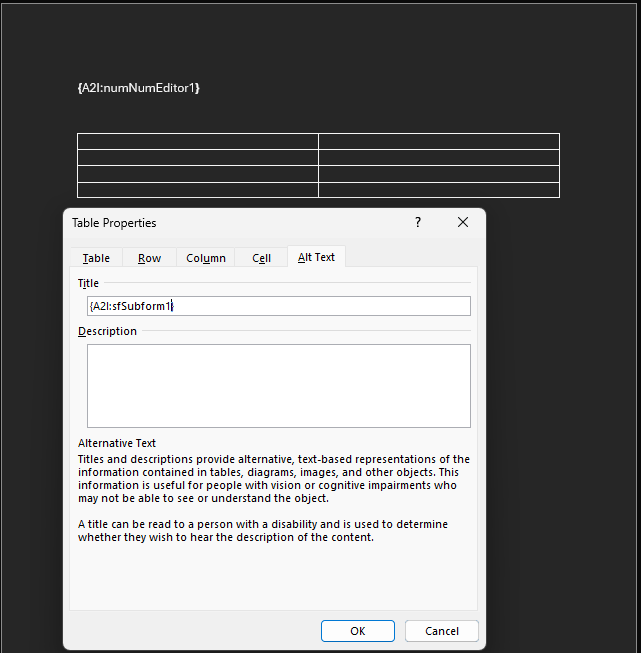
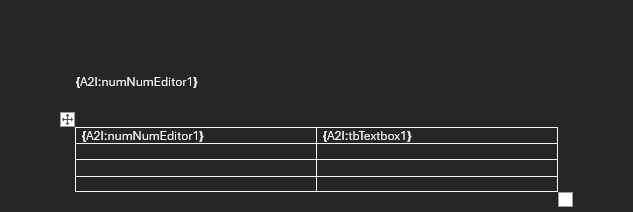
Subforms require a little bit extra work. Simply adding the Field Code is not enough. A SubForm must be enclosed in a Table while the Tables alt-text must include the field code of the subform itself. A table’s alt-text can bee set by right clicking on the table and opening the Properties.
Below is an example of the above.

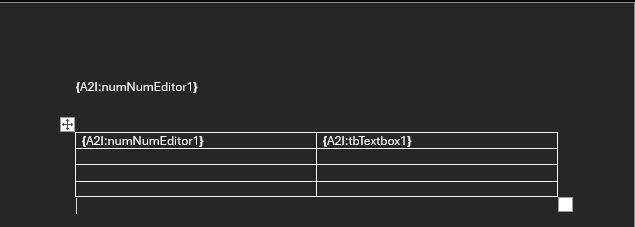
From here you can insert the field codes as normal.

Reporting Studio
When you have a Word document that is satisfactory we can start by uploading it into the Reporting Studio.
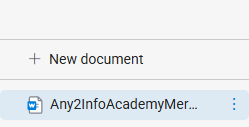
When a Form Definition has been opened you can open the Merge documents tab at the bottom of the screen. Here we can upload the document.

Below is how it should look like when the document is uploaded.

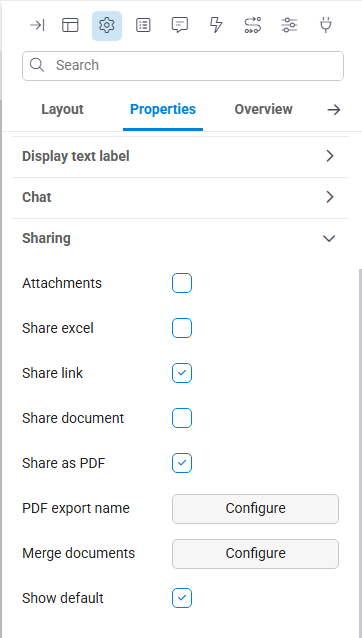
In order to see the document in the Viewer as a possible export file we have to add it as a merge document. That can be done in the Properties section of the Form Definition, followed by the configuration of Merge documents.
While you’re at the Properties, make sure to enable “Share document”!

Simply drag your usable document into the Documents column and save the form definition.
Usage
From here the usage of a chosen document is simple. Simply open a form message of the form you have setup the document for. Open the ellipsis menu (3 vertical dots) in the top right. Click Share PDF/Word and select your Document.
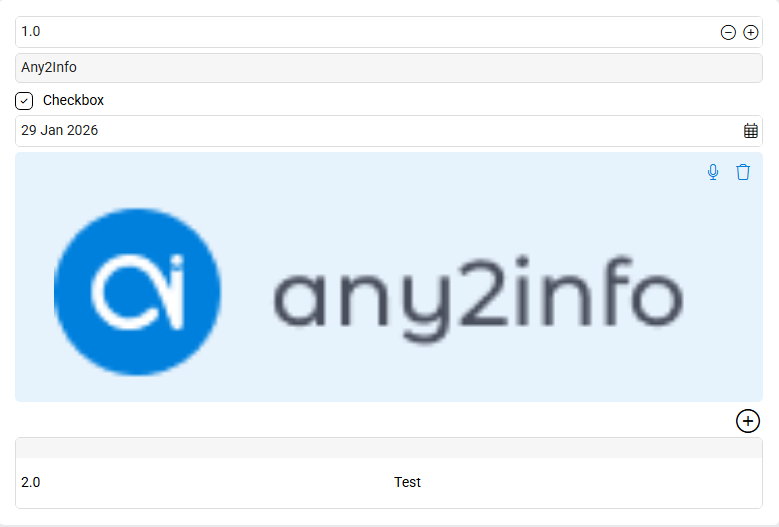
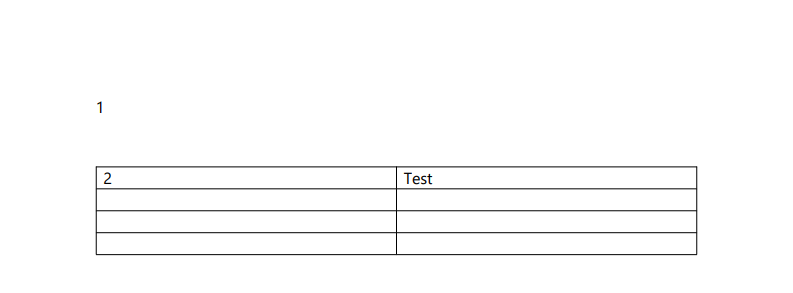
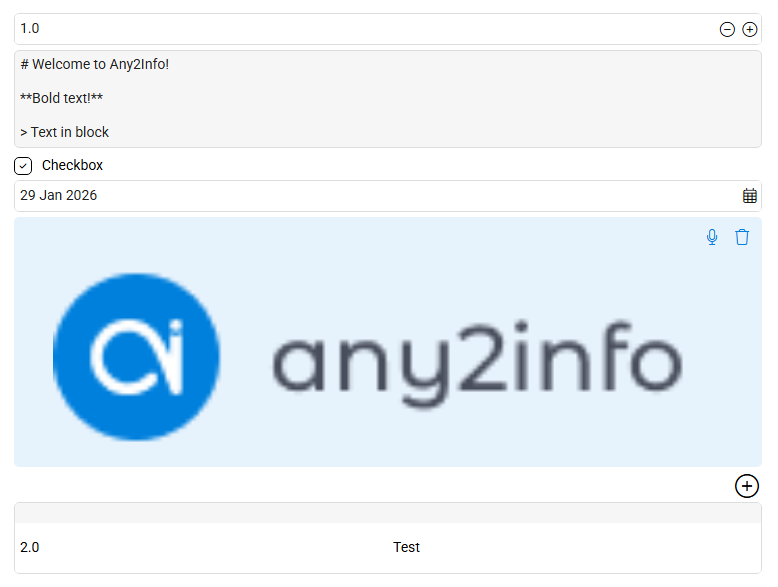
The form message below in combination with a very basic Word Merge document will result in the 3rd image from below.


Note how the “2” and “Test” value are taken from a SubForm message.
Usage - Advanced
Special values were previously mentioned, but do still need an example of usage.
For the values of this section, we will use the following form message:

The result of all the special values will be shown at the end of this section.
Quotes
To use the Quotes special code you need a Boolean (true/false) value. Most commonly this would be in the form of a Checkbox. Though other true/false options are also possible, like a FormData field with the value set to IsTemplate.
Below is how the FieldCode could look like:
In order to use the Date Formatting the value must be any variant of a Date/DateTime. Which is why the Date & Time field will most commonly be used for this value. Though the FormData field also has a Date value in the Created option. A list of option can be found on this tc39 page.
Below is how the FieldCode could look like:
In order to use the Image Dimensions the value must be originating from an Image. This means that Fields like Media, Image and Signature can be used. FormData field can also be used if it is set to Form Creator and Last Updater.
The only dimensions that can be set are the maxheight and maxwidth. This means that dimensions cannot be directly set, only allowed to grow until the specified values.
Below is how the FieldCode could look like:
Markdown
In order to use the Markdown option the value must be that of a String. This means a Textbox Field is mostly the target for this option. Though other fields are still options.
Below is how the FieldCode should look like, there are no other options other than “|Markdown|”:
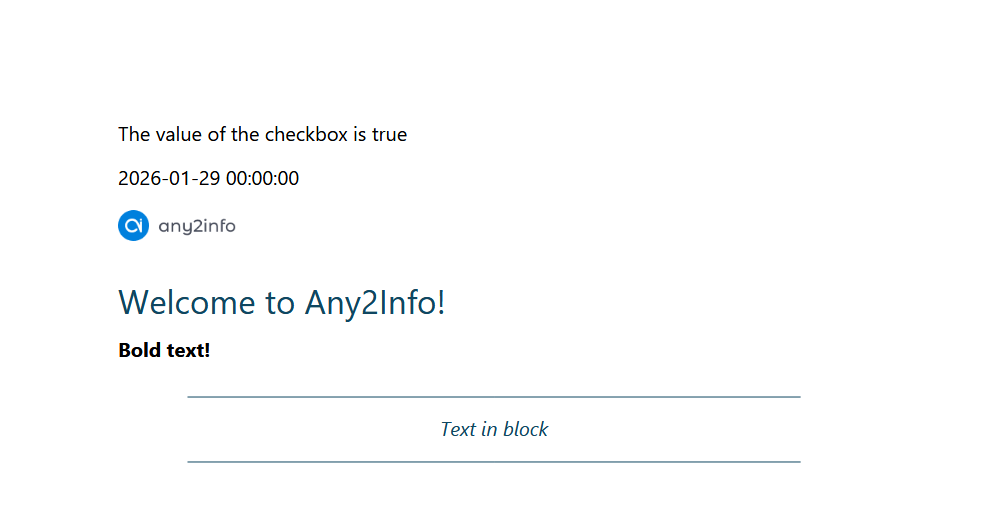
Result
When exporting the aforementioned Form Message using all of the FieldCodes provided above the result will look as follows:

Tips & Best Practices
You can fit FieldCodes anywhere in a document, even Headers or Footers! Get creative!
Give the Merge Documents proper names, if you have multiple it might get hectic knowing which to select!
If you’re not using a Merge Document anymore, you can always remove it from the Merge Document list
Properly name your fields in the Form Definition, otherwise it might become increasingly difficult to know what field is what.
Changelog
Version
Date
Change
1.0
February 2, 2026
Initial document & documentation
Last updated
Was this helpful?