> For the complete documentation index, see [llms.txt](https://academy.any2info.com/any2info-academy/llms.txt). Markdown versions of documentation pages are available by appending `.md` to page URLs; this page is available as [Markdown](https://academy.any2info.com/any2info-academy/no-code-platform/data-studio/connections/connected-apps.md).
# Connected apps
**Category**: Connections
**Version**: 1.0
**Last Updated**: January 29, 2026
**Author**: Any2Info
***
### Description
Connected Apps allows end-users to link accounts such as Microsoft account to their **Any2Info** accounts. This could be used within the **DataHub** to execute **DataFlows** as a certain user, using the set Token or Credentials.
***
### Setup
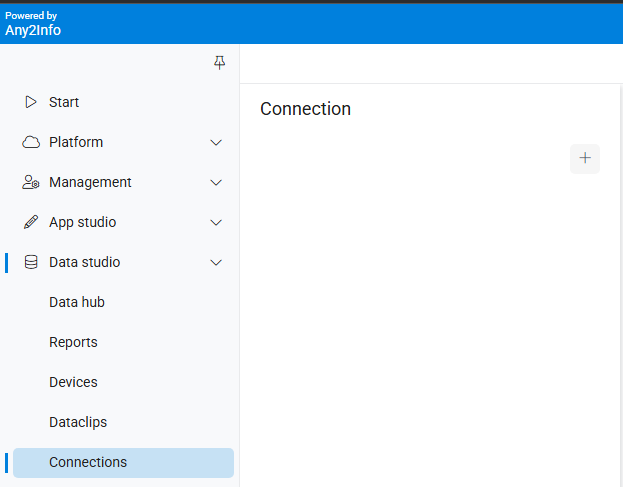
The setup of **Connected Apps** starts in the **Reporting Studio**, in the **Connection** section of the **Data Studio**.
Here Admin users can create Connections. The options ranging from Collection wide, user specific or Authorization Structure specific.
When the + icon is clicked, a new set of inputs are shown. The **Name** and **Level** are the same for all **Types**. Sub-options may become available depending on the **Type** chosen.
There are 3 Levels that can be chosen:
| **Level** | **Description** |
| --------------------------- | ---------------------------------------------------------------------------------------------------- |
| **Collection** | The Connection is valid for all users within the Collection |
| **Personal** | The Connection is valid for only the user that has entered their credentials or linked their account |
| **Authorization Structure** | The Connection is valid for all users within the Authorization Structure |
Furthermore there are 3 Types that can be chosen:
| Types | Description |
| --------------- | -------------------------------------------------------------------------- |
| **oAuth2** | External validation of the Users account, like Microsoft, Apple or Google. |
| **API Headers** | A list of Headers (or Query Parameters) with a set name. |
| **Credentials** | A simple combination of Username and Password |
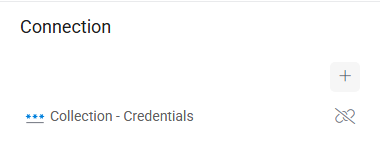
When a new **Connection** has been added it will appear in the connection list as such:
***
### Usage
#### Filling a connection
A connection is not worth anything if it is not filled in. The following chapters go over where and how to do this.
**Reporting Studio**
If the **Level** is set to **Collection** then the Admin user can immediately fill in the Connection data. You may do so by hovering over the **Connection** and clicking on the 3 vertical dots, this will open a context menu where you can choose the **Set Values** option.
Clicking on this option will open a dialog depending on the **Type** chosen. Here you can fill in the relevant data. If the **Type** is of **oAuth2** then it will instead redirect you to the Authorization URL that was set when creating the **Connection**.
If the **Level** is set to **Authorization Structure** then they can filled in the **Authorization Structure** menu under **Management**. When a Structure is selected a tab will open on the right of the screen if connections exist.
**Viewers**
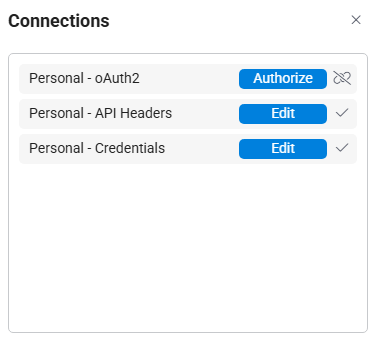
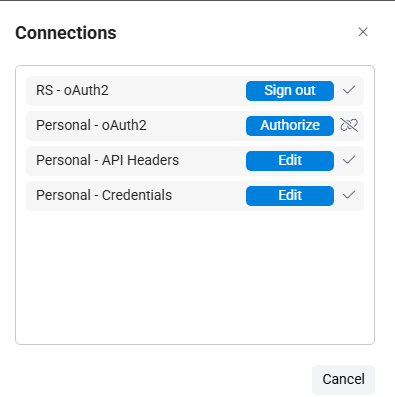
**Connections** of the **Level Personal** show up in the Viewers, both the web based viewer and the mobile viewer, under Settings > Connections. Here Viewer users can fill in or authenticate their connection.
***
#### Using a connection
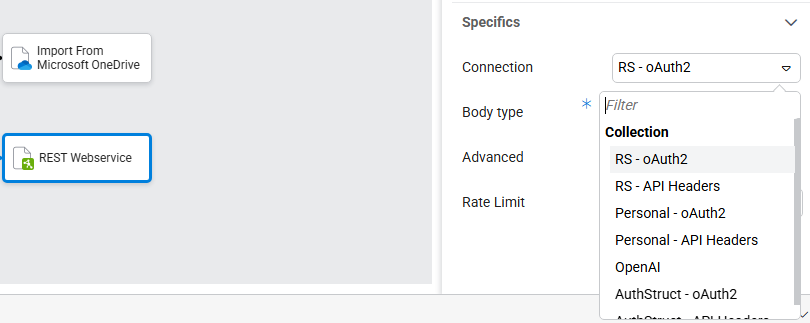
A **Connection** can be used in **DataFlows** as a connection for certain **Nodes**. For example the **REST Node**.
A Connection can be selected through the dropdown. If it is set it will use those details in the execution of the Connection.
Given the following **REST API** setup the result would change depending on what user is executing the Node.
For demo purposes I only opted to extract the **jobTitle**. However this Node in combination with a Personal Connection would result in different outputs for each user.
In this way Nodes can be executed as the logged in user, the Authorization Structure or on Collection level which allows for far greater customizability within DataFlows.
***
#### Deleting/Unsetting a connection
A set Connection can be unset rather simply. In the case of **oAuth2 Connection** you can simply click or press on the Sign Out button. For **API Headers** and **Credentials** you could simply empty the inputs and save the empty values.
For **Authorization Structure** and **Collection Connections** the connection can be Deleted/Unset in the **Reporting Studio**, at the same place where it is set.
***
### Tips & Best Practices
* If your use case depends on users having linked an external account, make sure to alert these users to fill in their connections!
* Test a connection out first yourself by setting the **Level** to collection and filling in the values, or connect through oAuth2
***
### Errors
| **Error Message** | **Meaning** | **Solution** |
| --------------------------------------------------- | ------------------------------------------------------------------------- | --------------------------------------------------------------------------------- |
| One or more required parameters aren’t given | An input marked as “Required” was not filled in | Fill in all the Required inputs |
| Connection reset failed | The request to reset an oAuth2 connection has failed | Try resetting the connection again, if that does not work restart the DataService |
| Could not start OAuth authorization | The request to initiate an oAuth2 connection has failed | Try setting the connection again, if that does not work restart the AppsService |
| The system could not load the connection properties | The request to retrieve the related connection type properties has failed | Try setting the connection again, if that does not work restart the AppsService |
***
### Changelog
| **Version** | **Date** | **Change** |
| ----------- | ---------------- | -------------------------------- |
| 1.0 | January 29, 2026 | Initial document & documentation |
---
# Agent Instructions
This documentation is published with GitBook. GitBook is the documentation platform designed so that both humans and AI agents can read, navigate, and reason over technical content effectively. Learn more at gitbook.com.
## Querying This Documentation
If you need additional information that is not directly available in this page, you can query the documentation by asking a question.
Perform an HTTP GET request on the following URL with the `ask` and `goal` query parameters:
```
GET https://academy.any2info.com/any2info-academy/no-code-platform/data-studio/connections/connected-apps.md?ask=&goal=
```
`ask` is the immediate question: it should be specific, self-contained, and written in natural language.
`goal` is what the user is ultimately trying to achieve, the reason they need the answer. Sharing it helps GitBook give you a better, more relevant answer. A goal is most helpful when it describes the outcome the user wants rather than restating the question. For example, with `ask=how do I create an API token`, a goal like `automate deployments from our CI pipeline` lets GitBook tailor the answer to that use case.
The response will contain a direct answer to the question and relevant excerpts and sources from the documentation.
Use this mechanism when the answer is not explicitly present in the current page, you need clarification or additional context, or you want to retrieve related documentation sections.